ProHours Guide

    Getting Started

    Welcome to ProHours! This guide will help you get up and running quickly.
    Creating Your Account

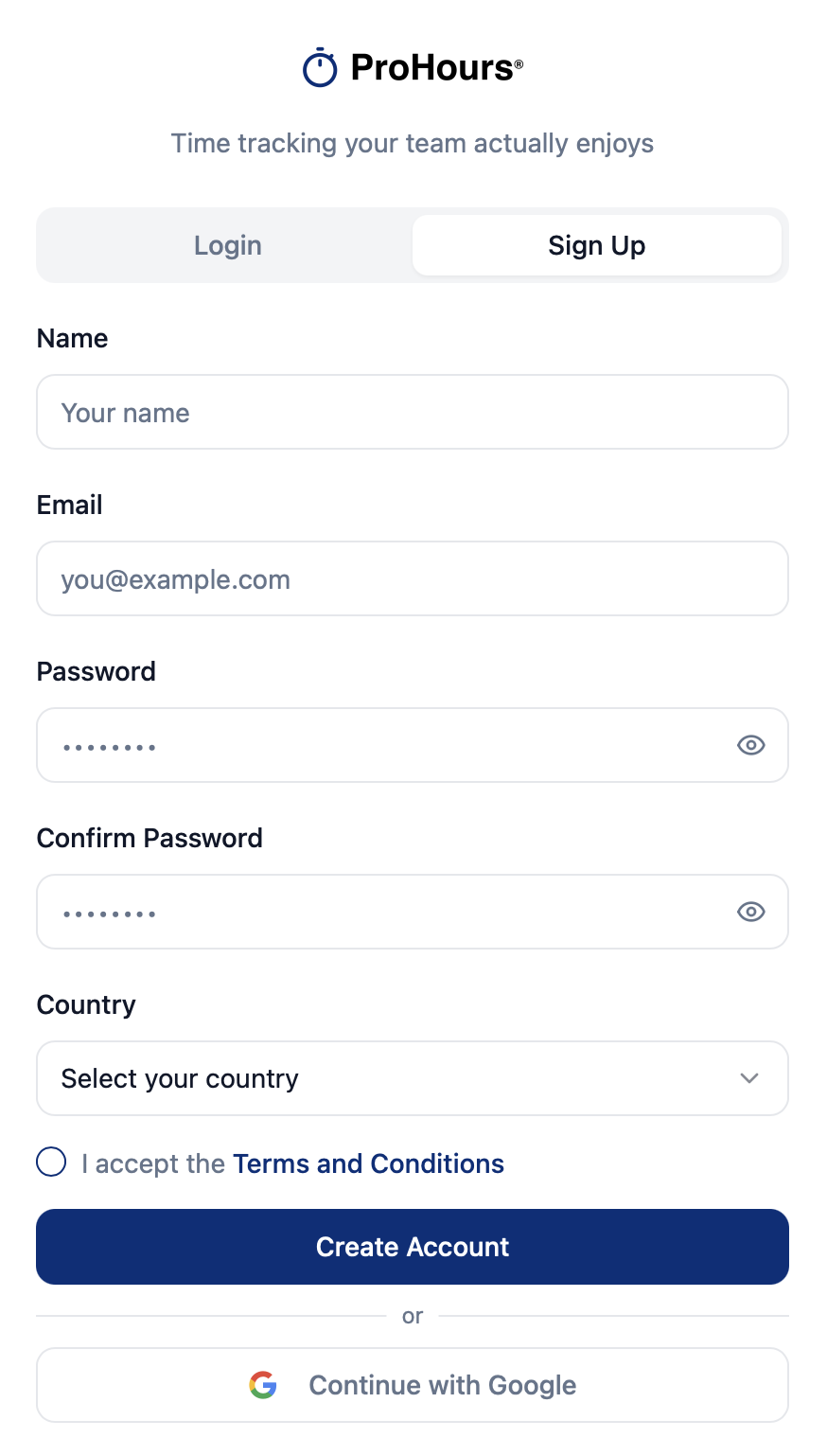
    Sign up with your email address. We'll send you a verification code to confirm your account. You can also sign up with Google.

    Pasted image


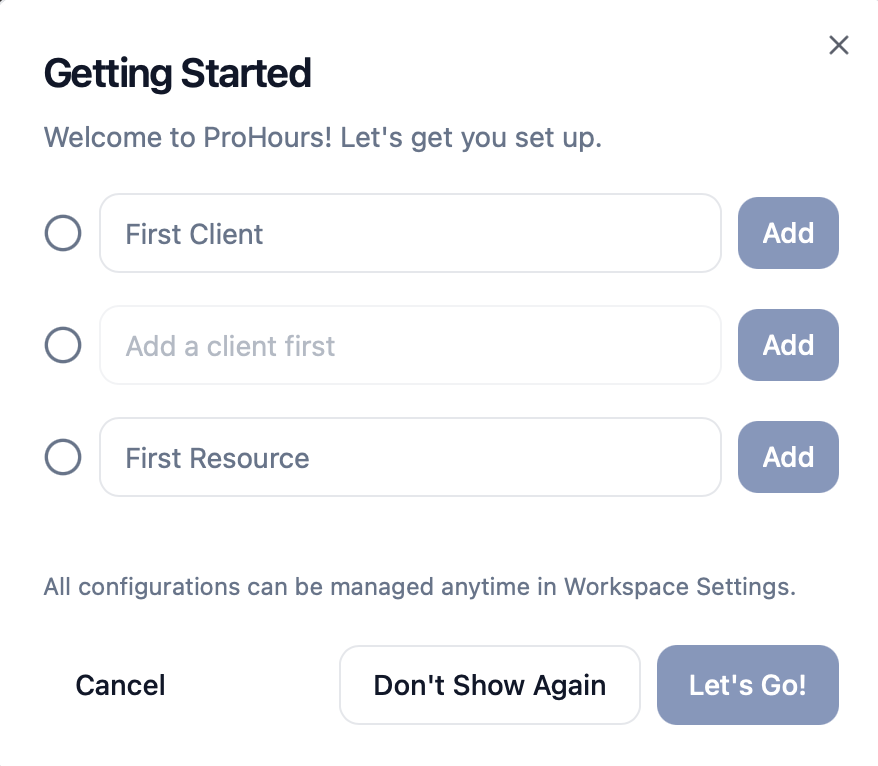
    After validation, the Getting Started screen helps you set up your first Client, Project, and Resource. You can skip this step and manage everything later in Workspace Settings.
    Pasted image


    Logging In

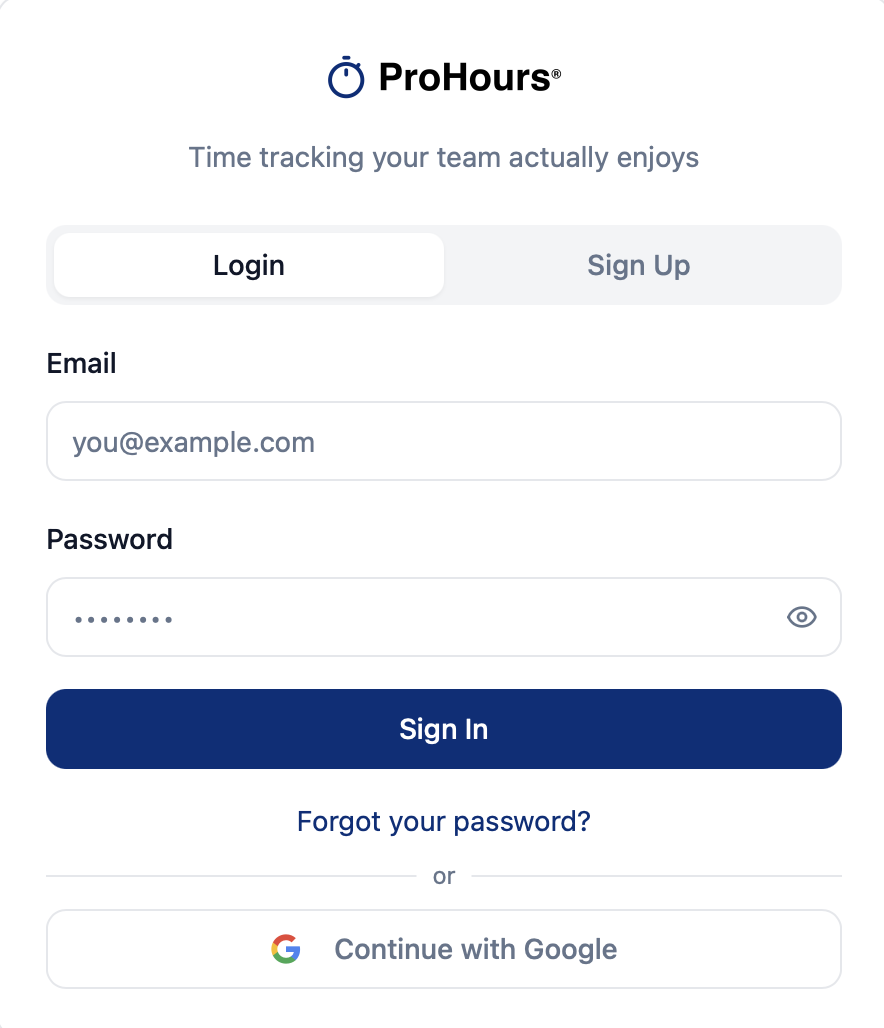
    Log in to access your dashboard using your email and password or your Google account.

    Pasted image

    Time Entries

    Track your work efficiently
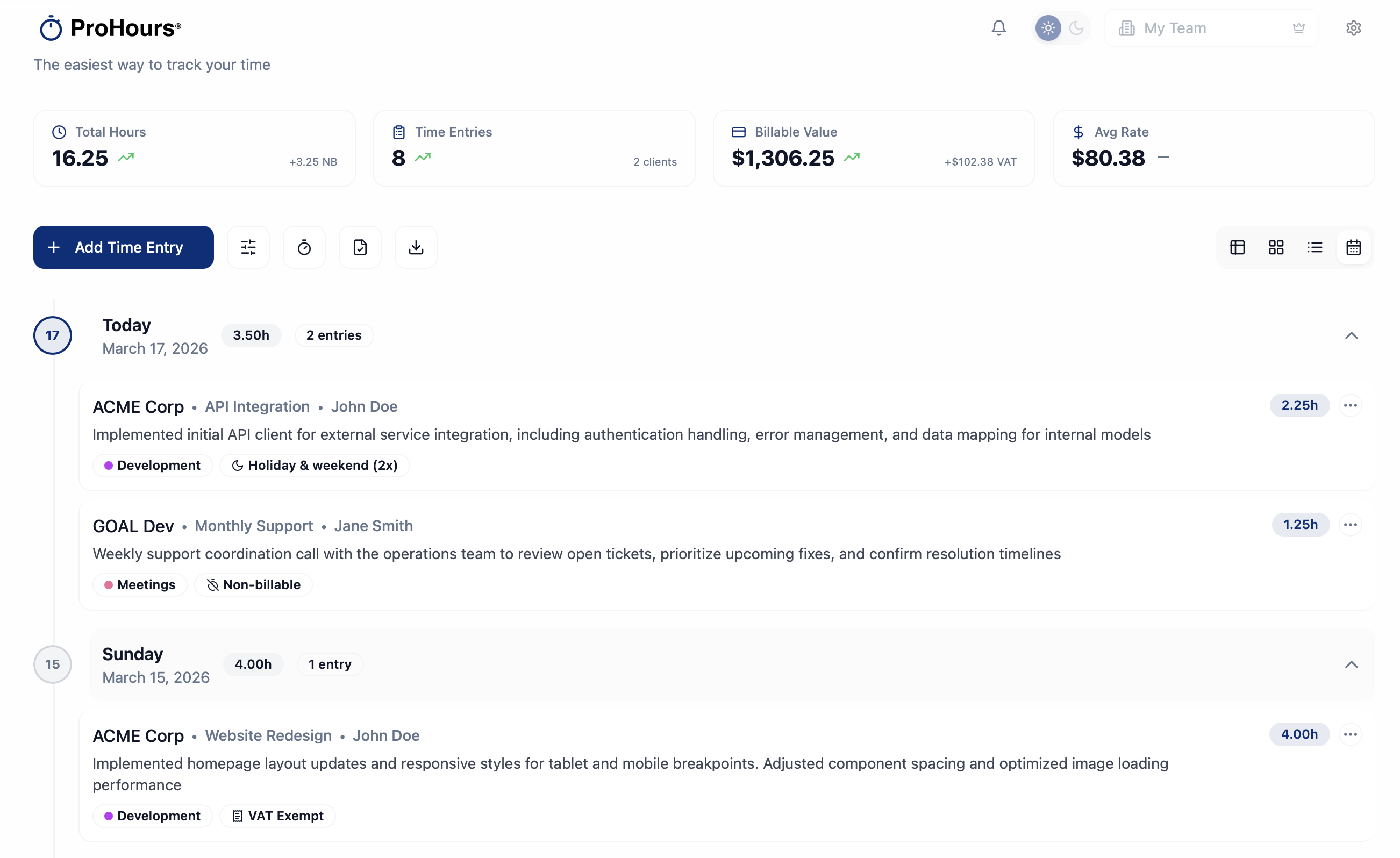
    Time entries are the core of ProHours. Each entry records work you've done. 

    Pasted image


    Adding an Entry


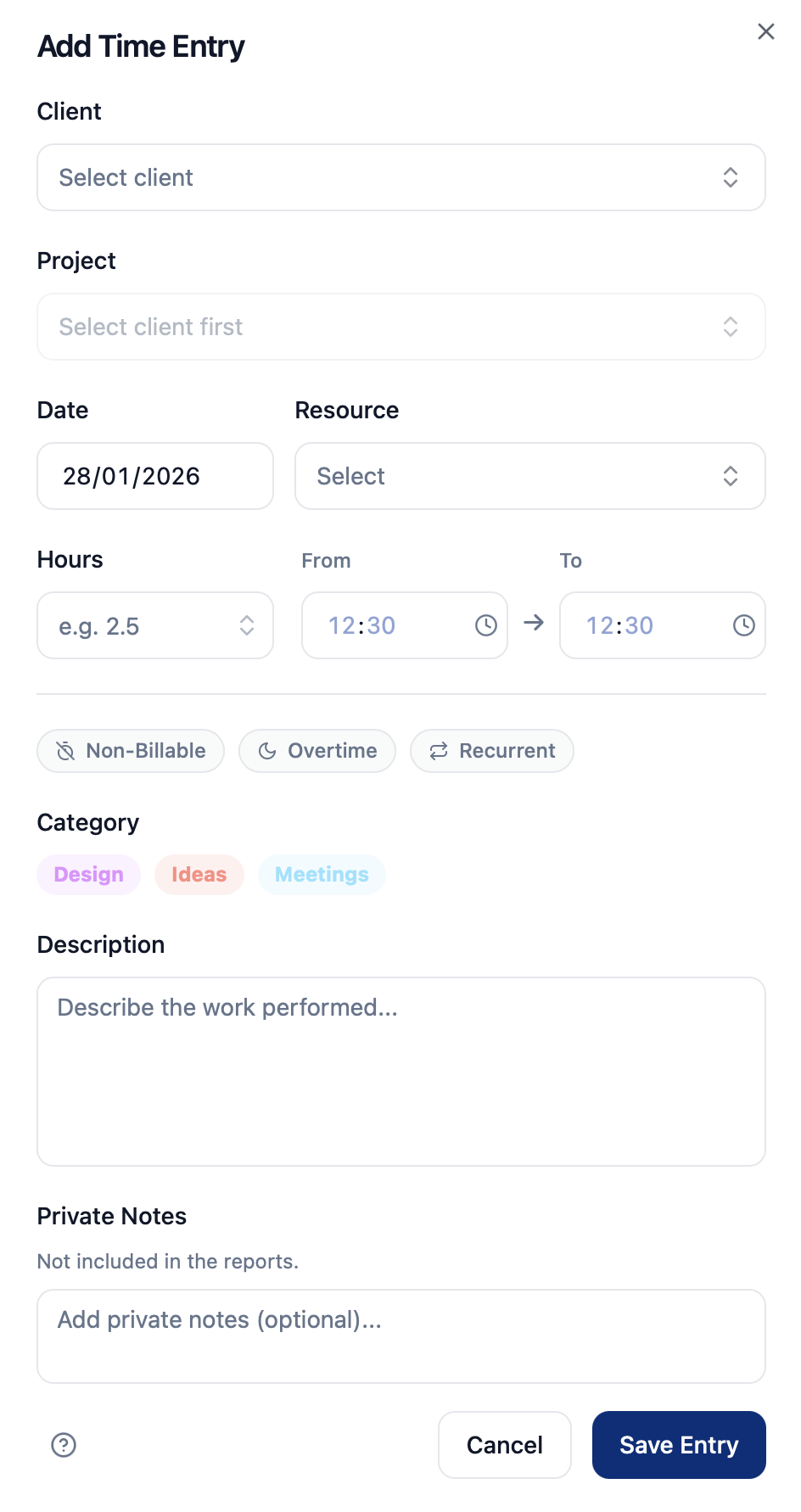
    Click the "Add Time Entry" button to create a new time entry. 


    ProHours gives you two ways to log time. Choose the experience that fits your workflow. You can select your preferred mode anytime in Workspace Settings.


    a. Complete Time Entry Form

    The traditional dialog with all fields available. Ideal when you need full control and detailed inputs.

    Pasted image


    b. Quick Entry Bar


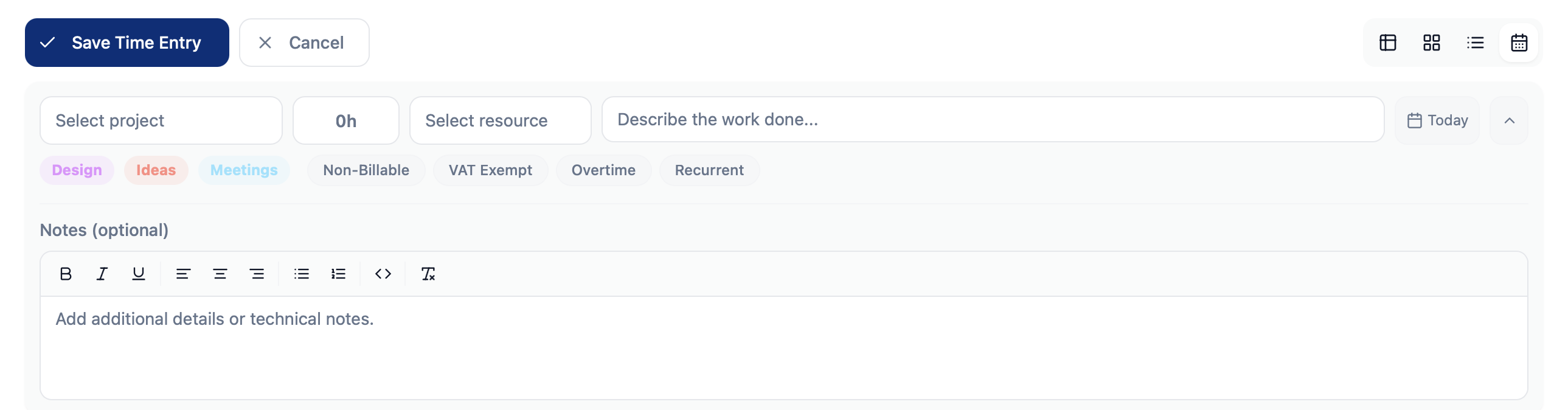
    A compact inline bar designed for speed. Add project, hours, resource, description, and date directly from the Home screen without opening a separate form.


    Pasted image


    You can expand the bar at any time to access advanced options such as categories, billing settings, recurrence, and private notes.

    Pasted image


    Keyboard Shortcuts


    Logging time is even faster using your keyboard.


    On the Home page:


    - Press Enter to open the entry interface.

    - Press Enter again to open dropdown lists.

    - Use Arrow Keys to navigate between options.

    - Press Enter to move to the next field.

    - When writing the description, press Enter to save the entry instantly.


    No mouse required. Just flow.


    Editing Entries

    Click any entry in the table to edit it. You can modify all fields including hours and descriptions. 

    Deleting Entries

    Use the delete button to remove entries. Deleted entries cannot be recovered.

    Clients

    Organize work by client

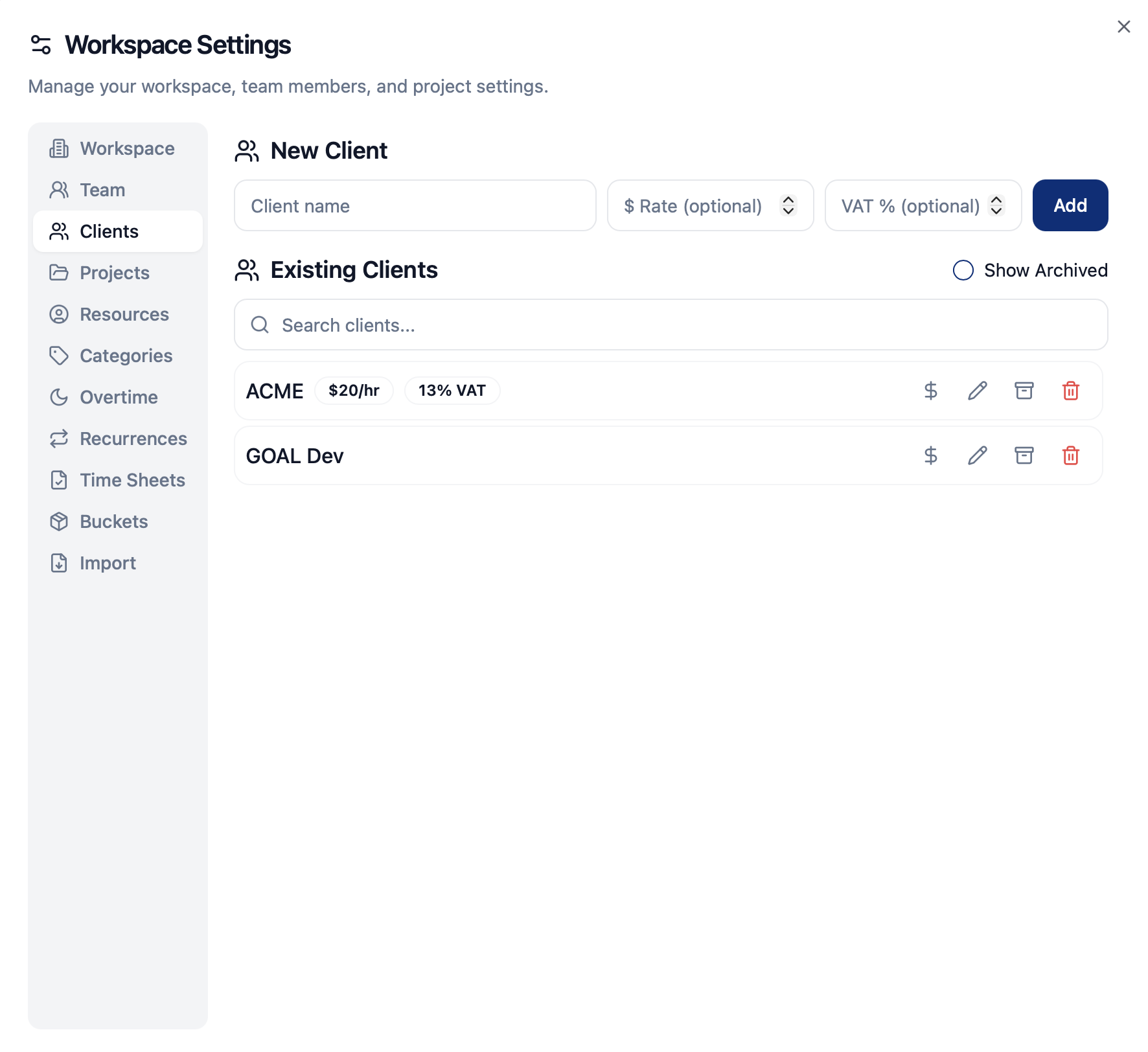
    Clients help you organize your projects and time entries. 

    Pasted image


    Adding Clients

    Create clients to group related projects together. Each client can have multiple projects. 

    Value Add Tax (VAT) and Client Rates

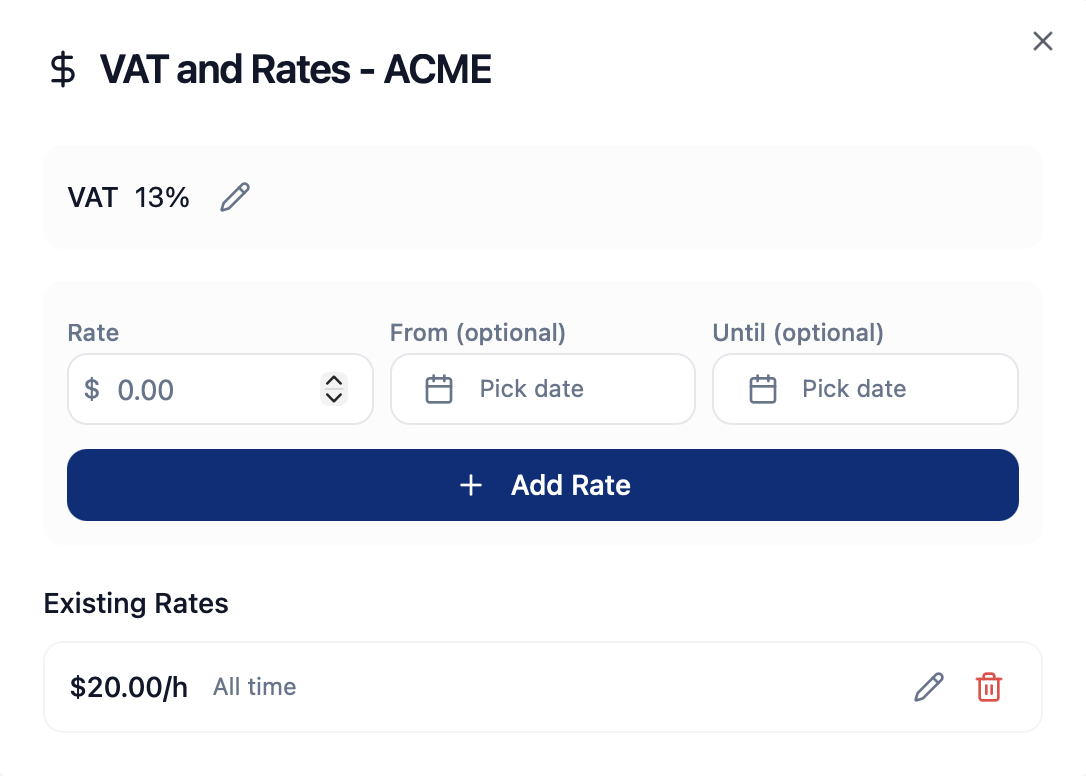
    Set hourly rates at the client level. These rates are used for billing calculations. You can also define the VAT percentage that will be applied to billable entries for this client.

    Pasted image


    Archiving Clients

    Archive clients you no longer work with. Archived clients won't appear in dropdowns but their data is preserved.

    Projects

    Manage your work projects

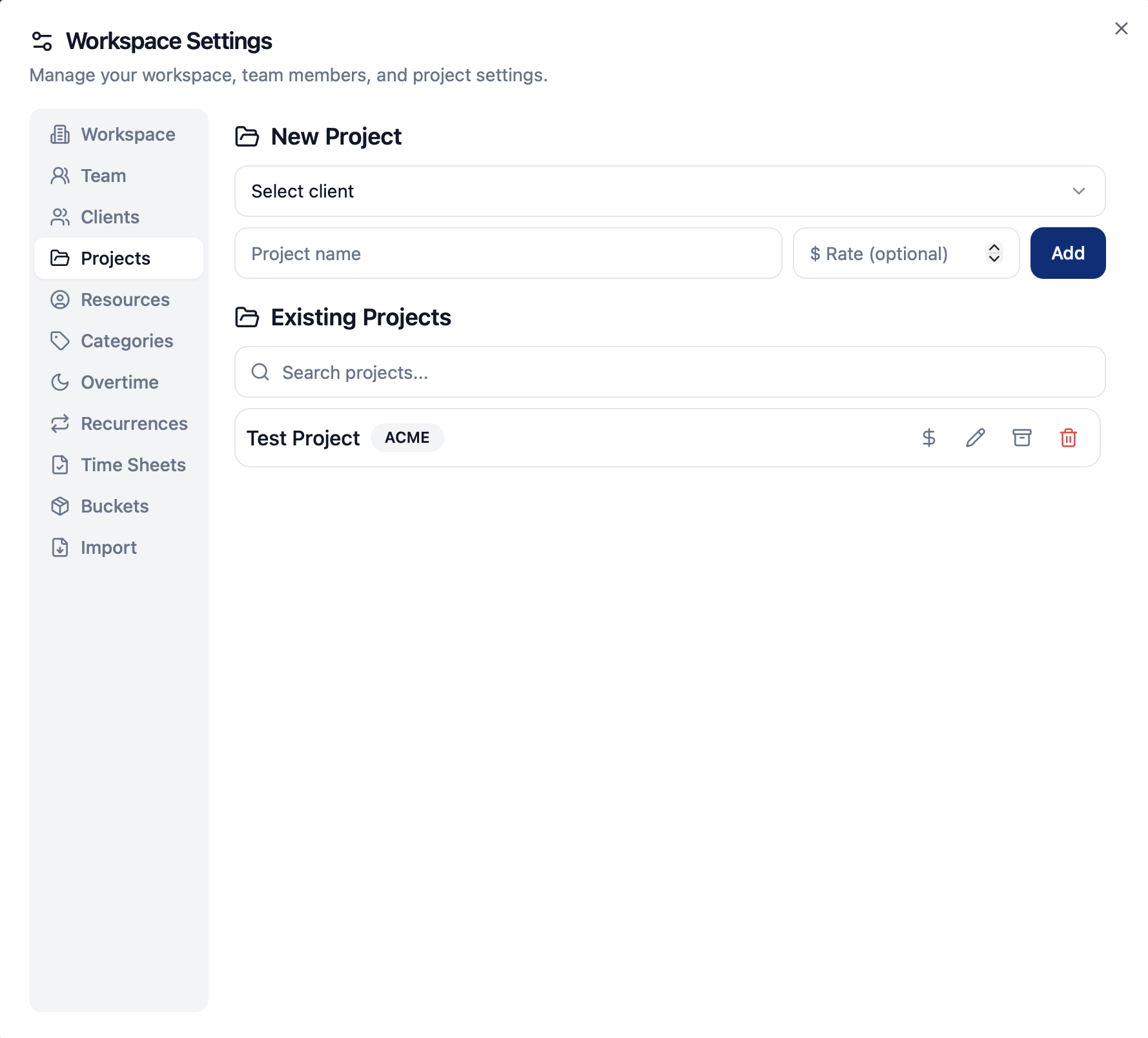
    Projects belong to clients and help you categorize your time entries. 

    Pasted image


    Creating Projects

    Each project must belong to a client. Add a name and optionally set a project-specific rate. 

    Project Rates

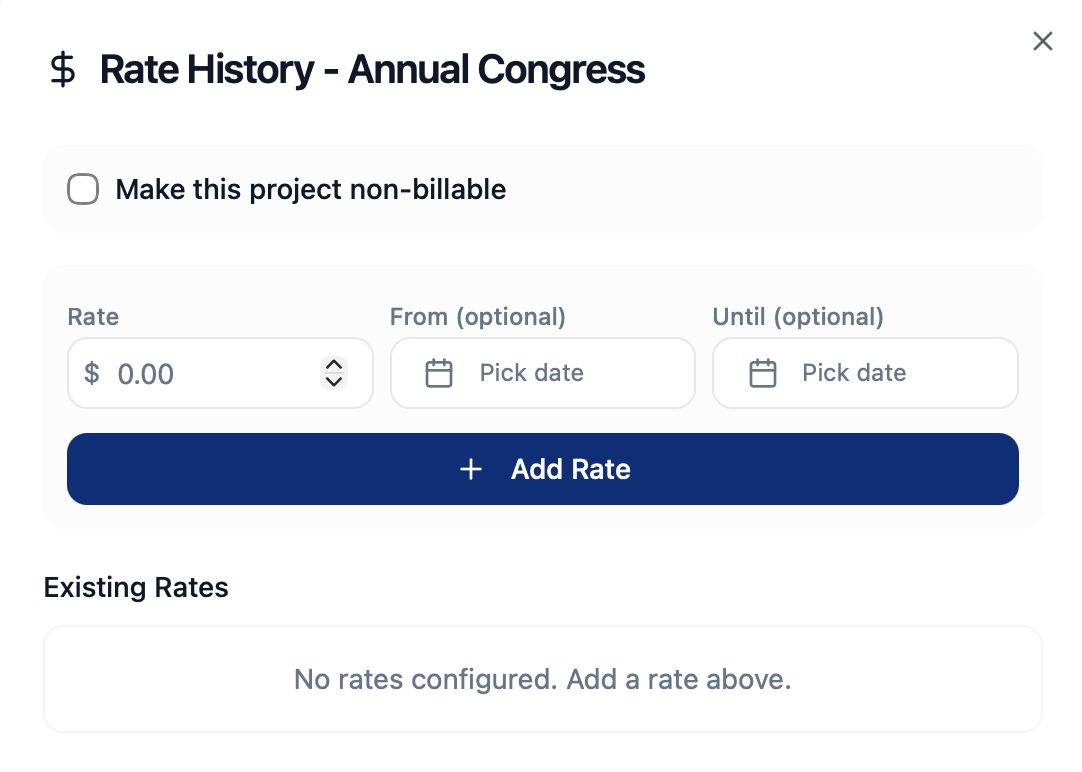
    Project rates override client rates. Leave blank to use the client's default rate. You can also make the project non-billable to automatically exclude all time entries from billing.

    Pasted image


    Buckets

    Link projects to hour buckets to track time against allocated hours.

    Resources

    Track who does the work

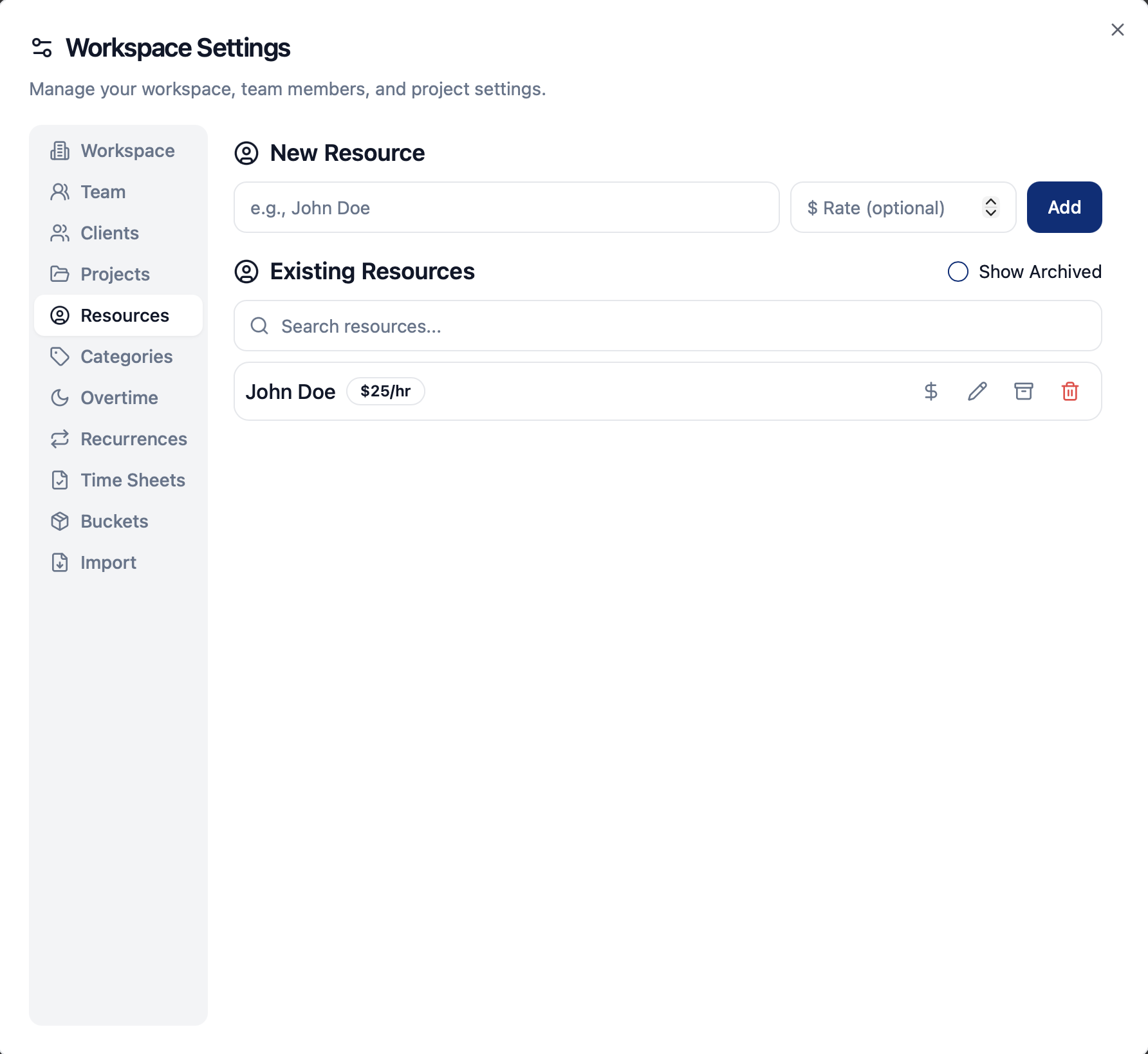
    Resources represent team members or individuals doing the work. 

    Pasted image


    Adding Resources

    Create resources for each person who logs time. This helps with team reports and billing. 

    Resource Rates

    Resource rates override project rates. Leave blank to use the project or client default rates.

    Resource Assignment

    Assign resources to time entries to track who worked on what.

    Categories

    Categorize your time entries
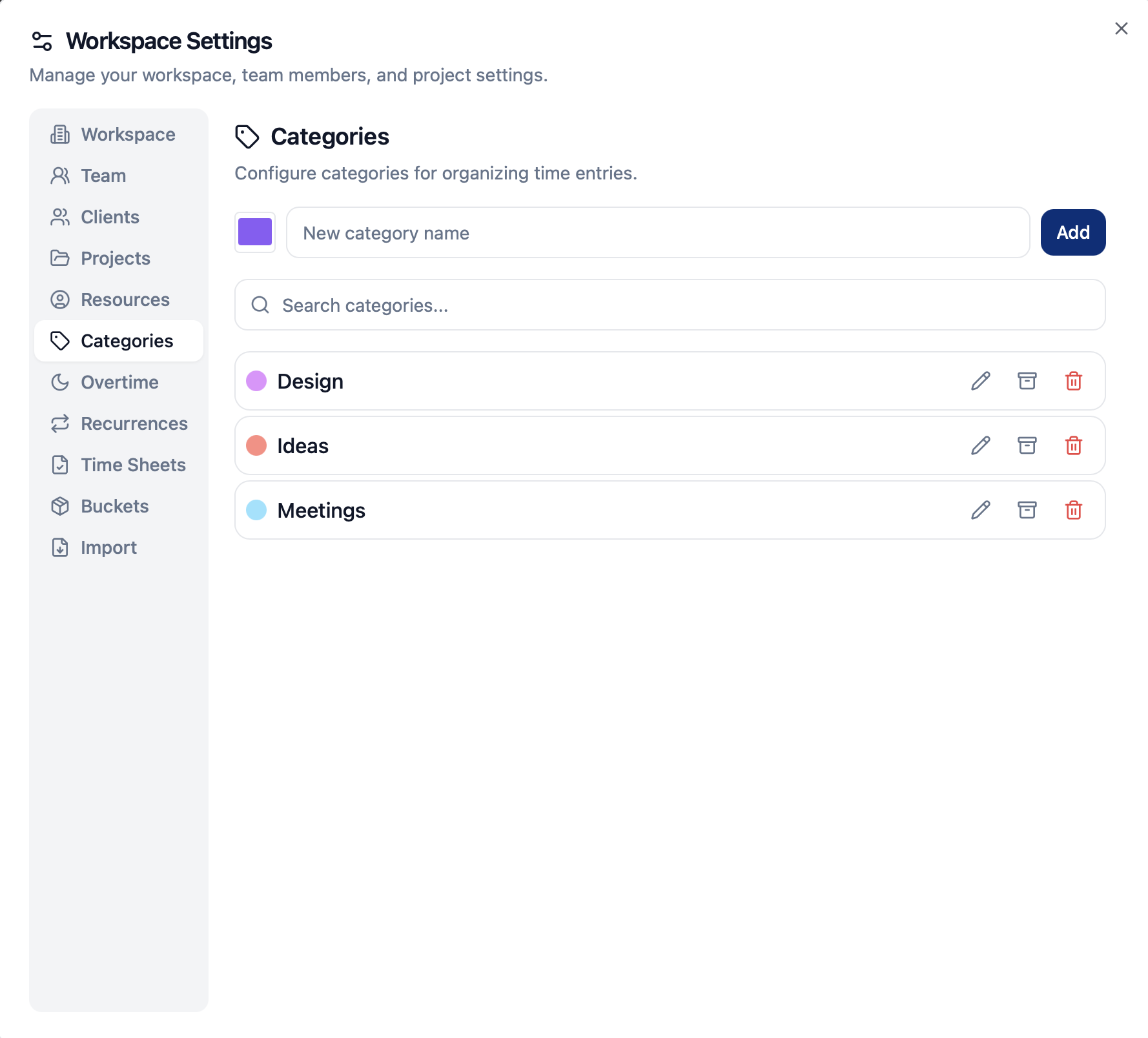
    Categories help you classify the type of work being done. 

    Pasted image


    Creating Categories

    Add categories like "Development", "Design", "Meetings", etc. 

    Category Colors

    Assign colors to categories for visual distinction in reports and the time entries table.

    Overtime Rates

    Track different billing rates
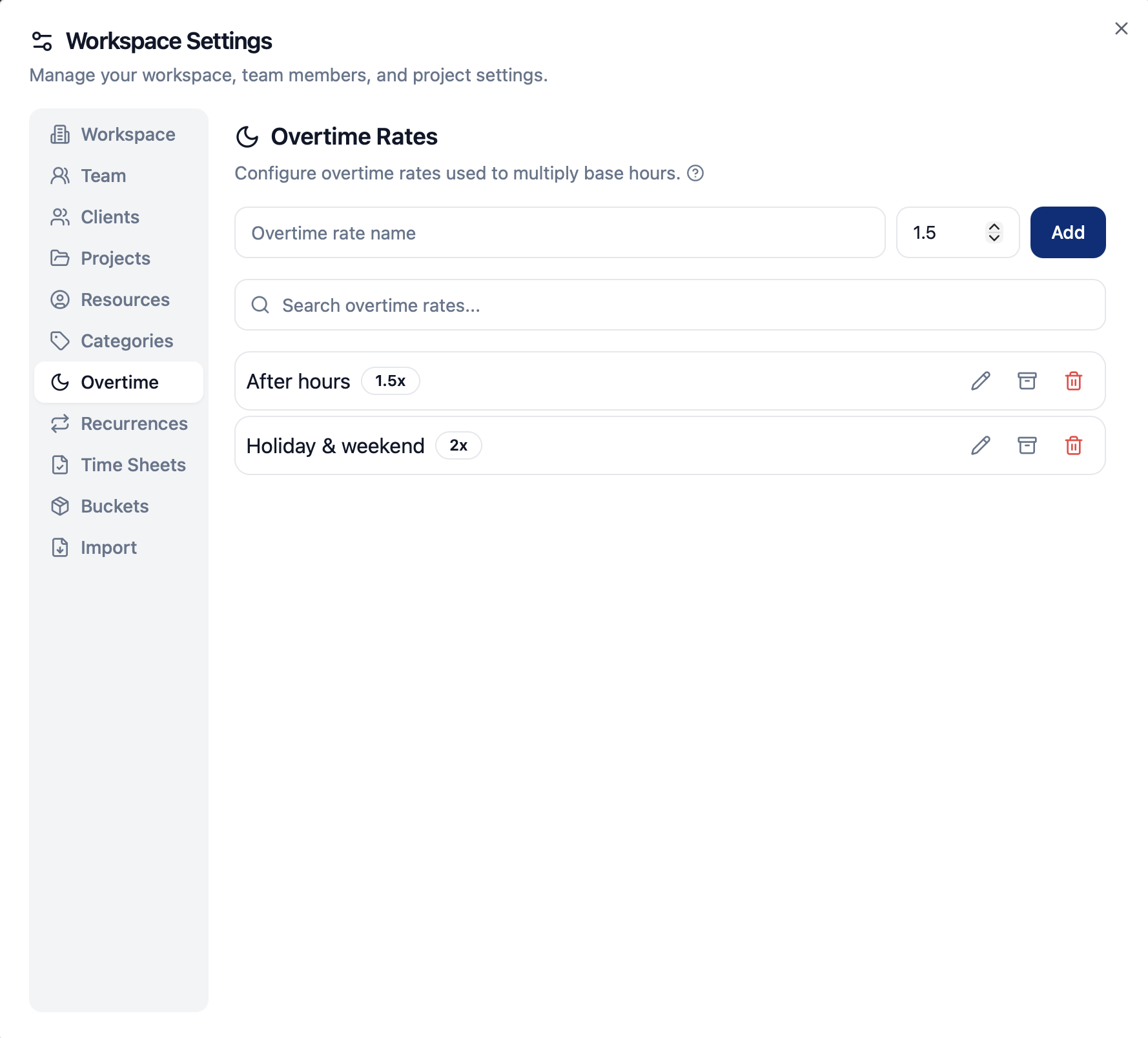
    Work types allow different multipliers for the same work. 

    Pasted image


    Default Work Types

    ProHours creates "After hours" (1.5x) and "Holiday & weekend" (2x) by default. These default types can be edited or deleted.

    Custom Work Types

    Create additional work types with custom multipliers for your billing needs. 

    Base Hours vs Final Hours

    When a work type is applied, base hours are multiplied to calculate final billable hours.

    Recurrences

    Automate repeating work with scheduled entries
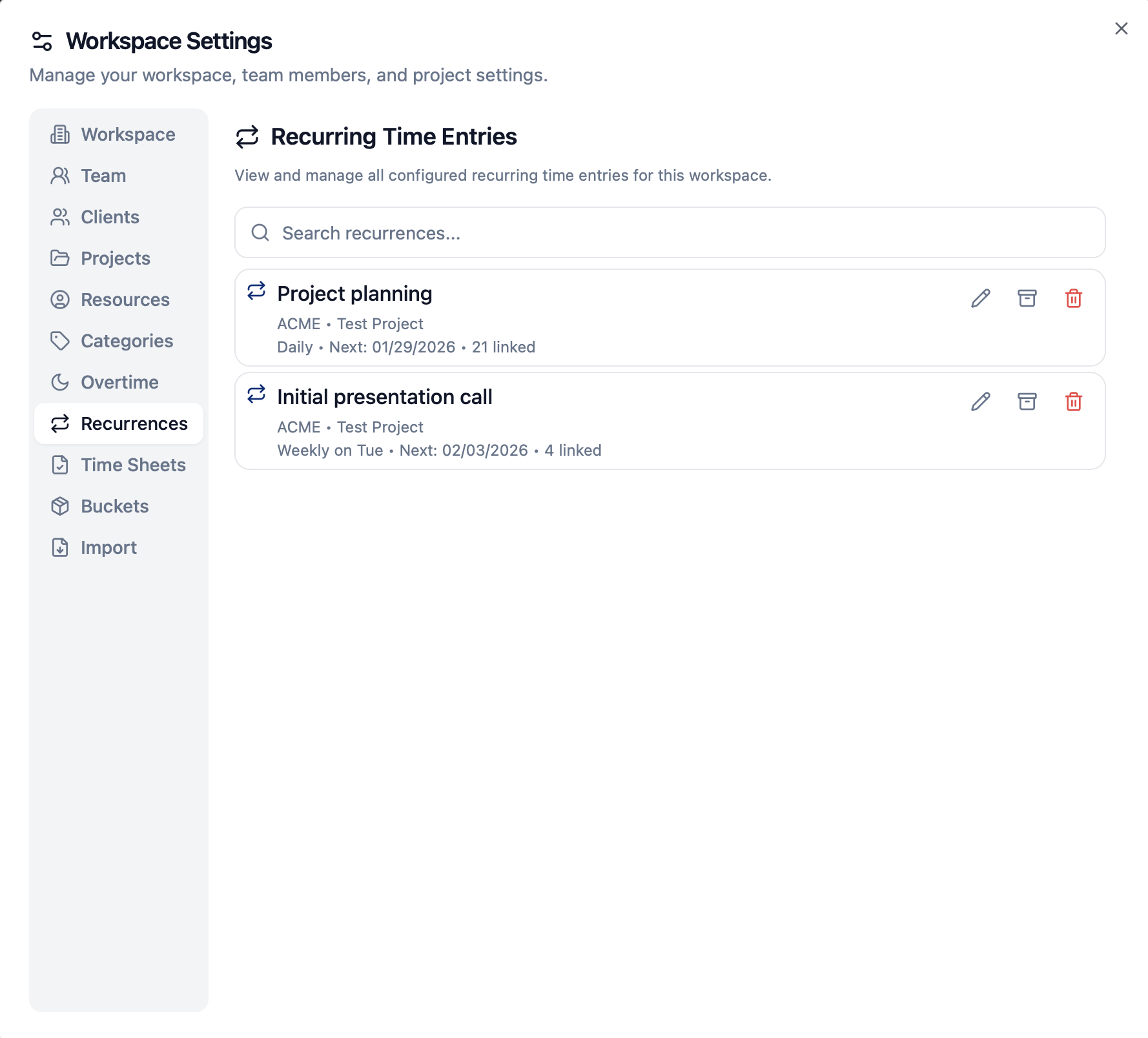
    Set up recurrences to automatically generate time entries on a schedule (daily, weekly, monthly, or custom). 

    ProHours creates the entries for you, so routine tasks are always tracked consistently. You can review, edit, or disable recurrences anytime from Workspace Settings.

    Pasted image


    Time Sheets

    Create time sheets instantly from filtered time entries and set up an approval workflow
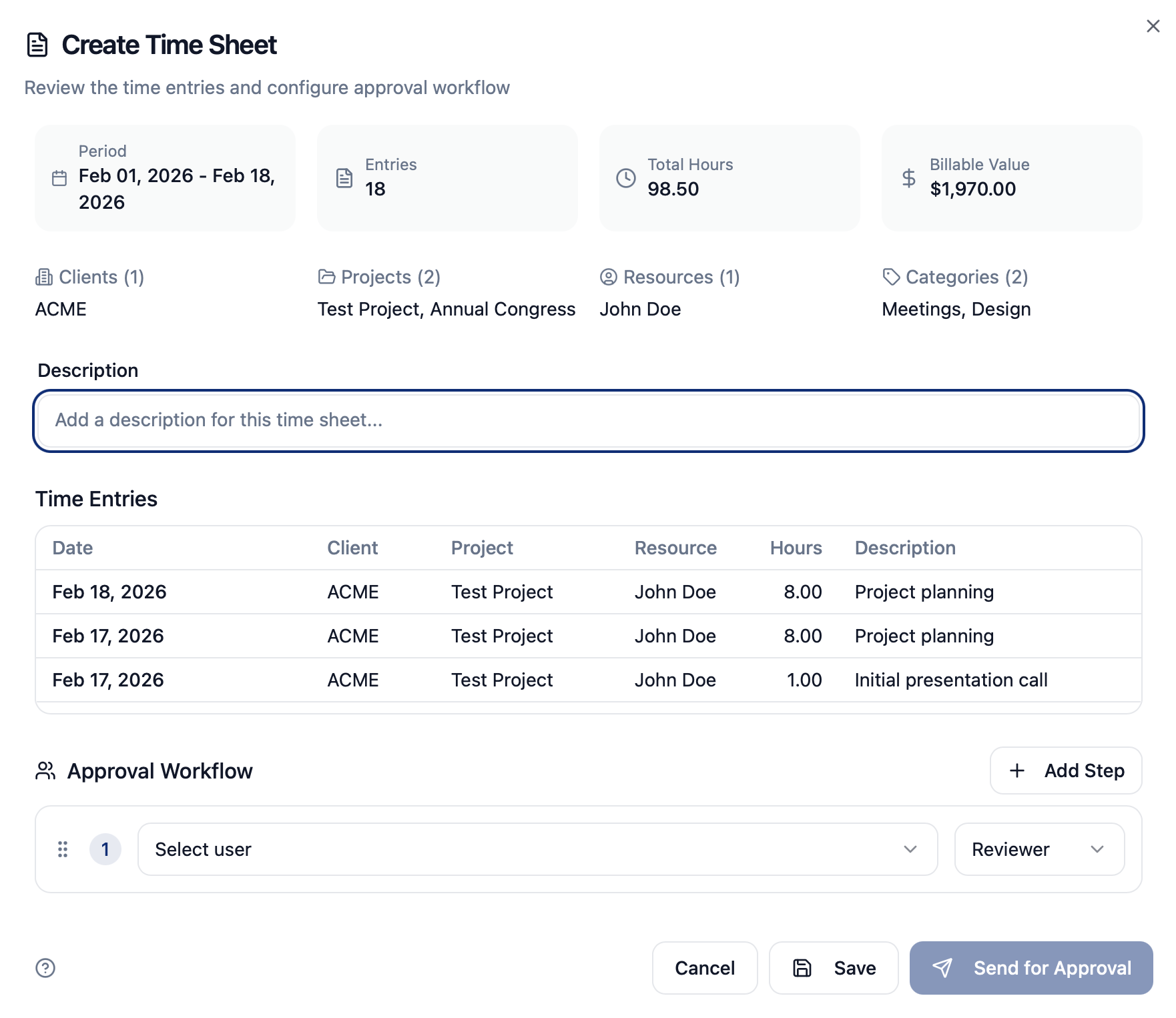
    Filter time entries on App/Home and click on the Time Sheet action icon. 

    You can add a description, review all included entries, and configure a step-by-step approval workflow with workspace members. Assign Reviewers and Approvers, then send the Time Sheet for approval. 

    Pasted image


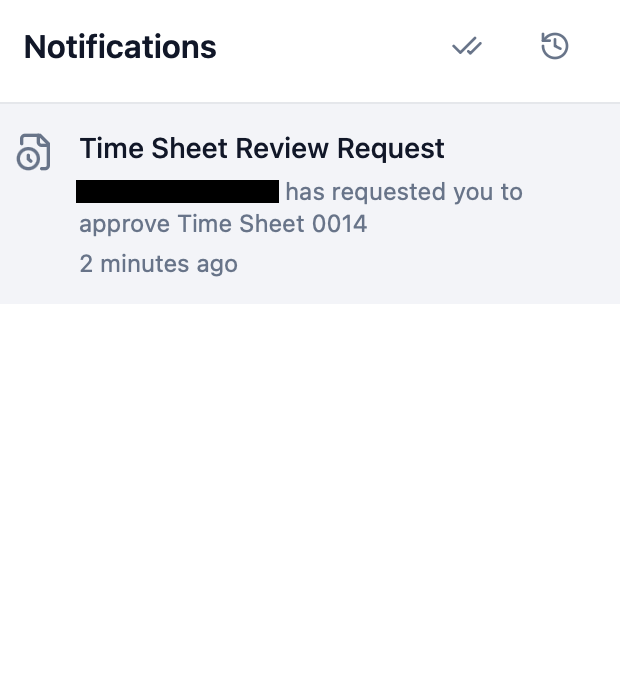
    Each step receives an in-app notification and an email alert, and the Time Sheet status updates as approvals progress. 

    Pasted image

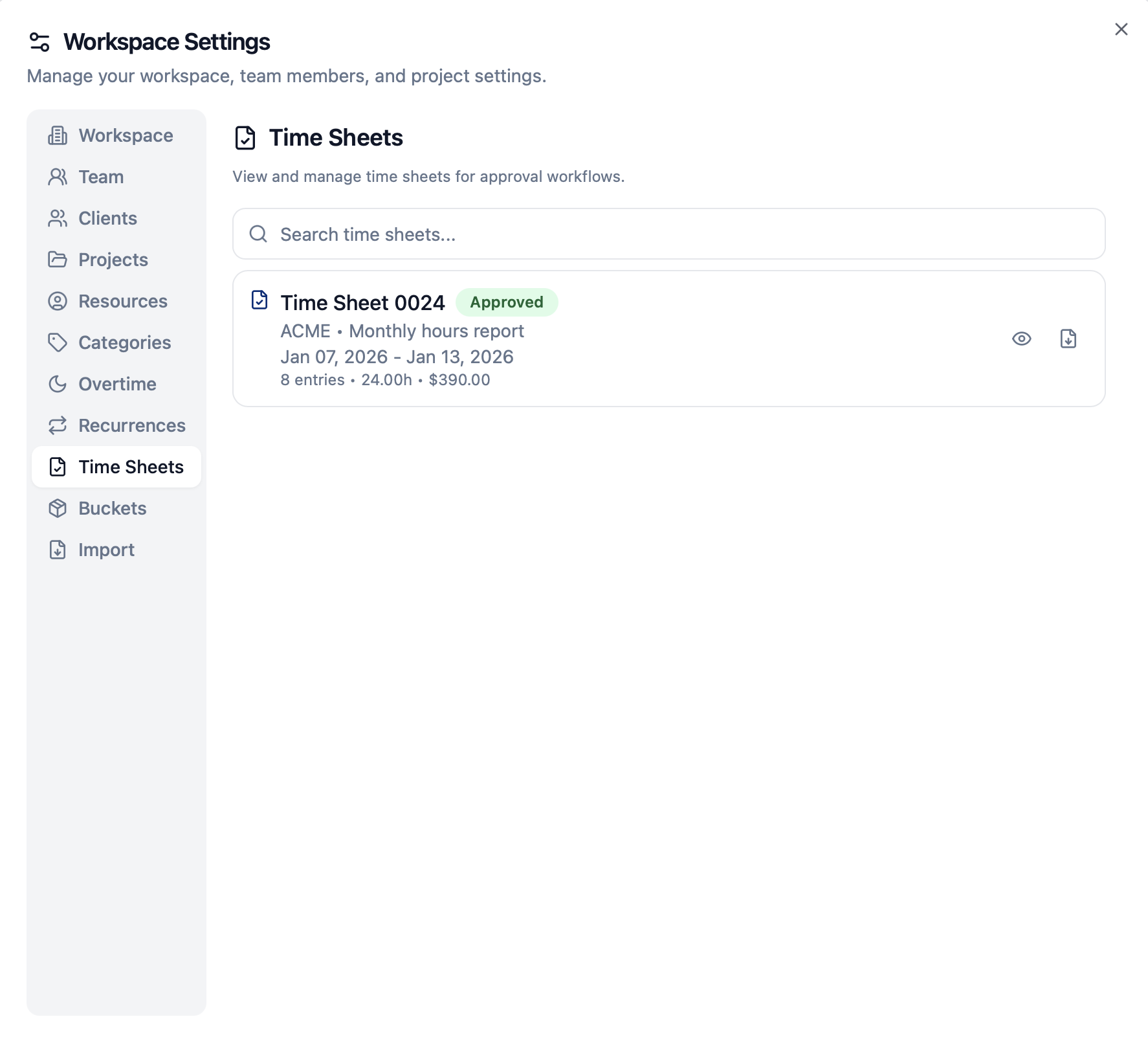
    You can also download a PDF report including all details and the full approval history.

    Pasted image

    Buckets

    Track time against allocations
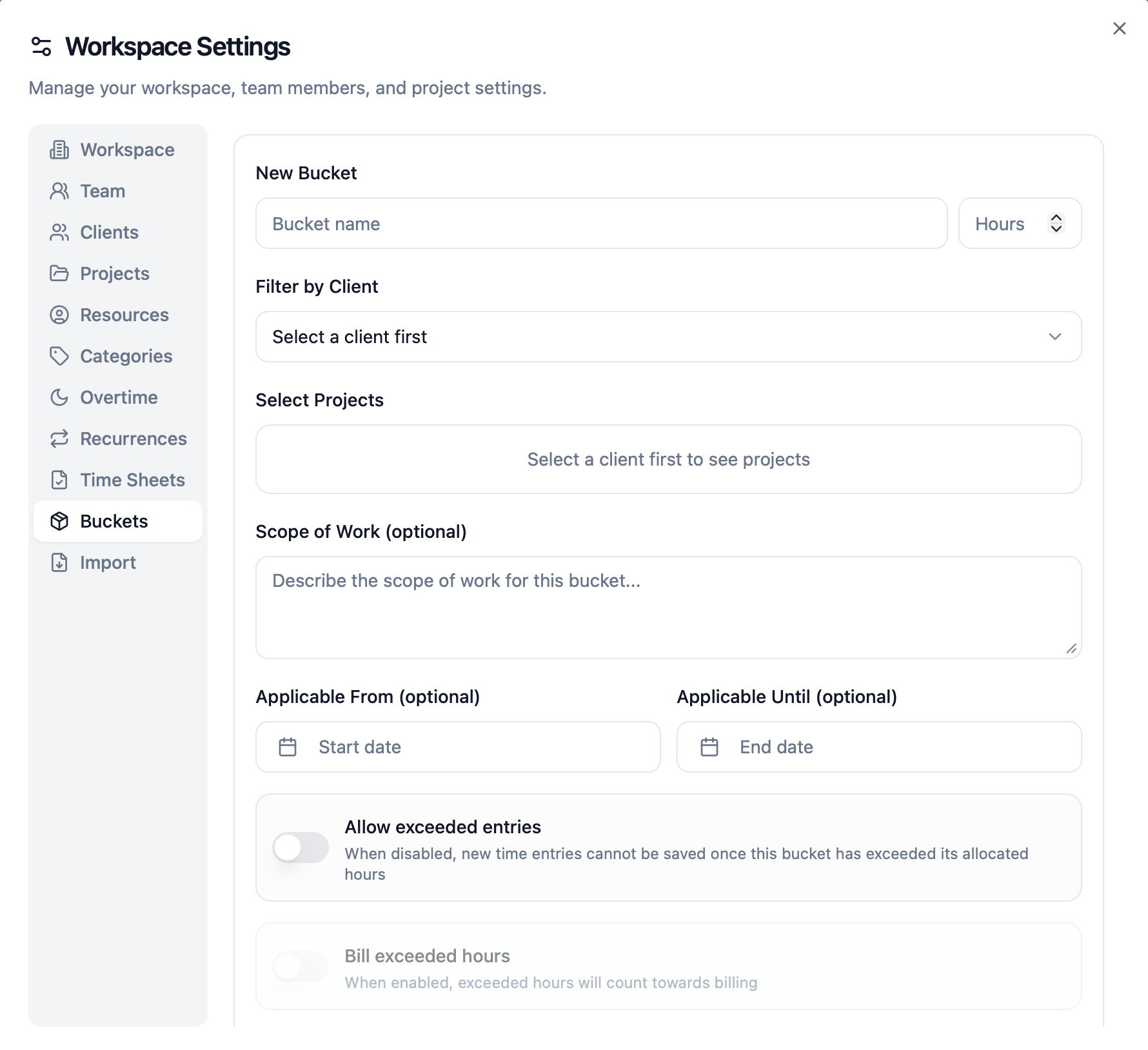
    Buckets help you manage allocated hours for projects. 

    Creating Buckets

    Set up buckets with total allocated hours, date ranges, and a scope of work.

    Pasted image


    Linking Projects

    Connect multiple projects to a single bucket to track combined usage. 

    Date Range

    Limit which time entries count toward the bucket by setting an optional From and Until date. Only entries within this range will be included in the bucket usage calculation. 

    Scope of Work

    Outline the services or tasks covered by the bucket. This will appear on the Bucket PDF report.

    Bucket Controls

    Control what happens when a bucket reaches its allocated hours. You can block new entries, or allow overtime usage and optionally mark exceeded hours as billable depending on your contract rules.

    Tracking Progress

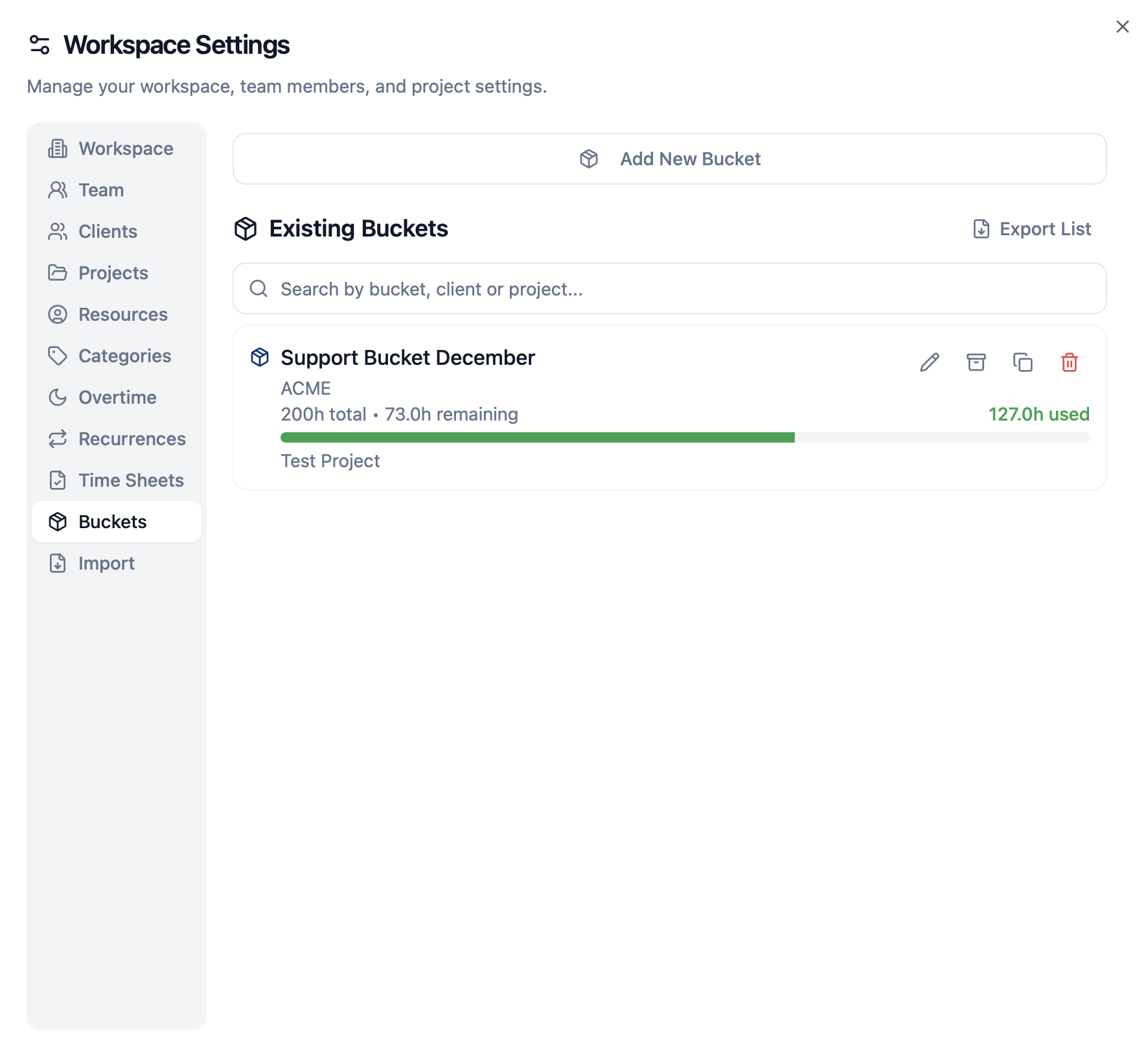
    View used hours vs total hours to monitor project budgets. You can also export active and archived buckets as a PDF report.

    Pasted image

    Liver timers

    Track time as it happens
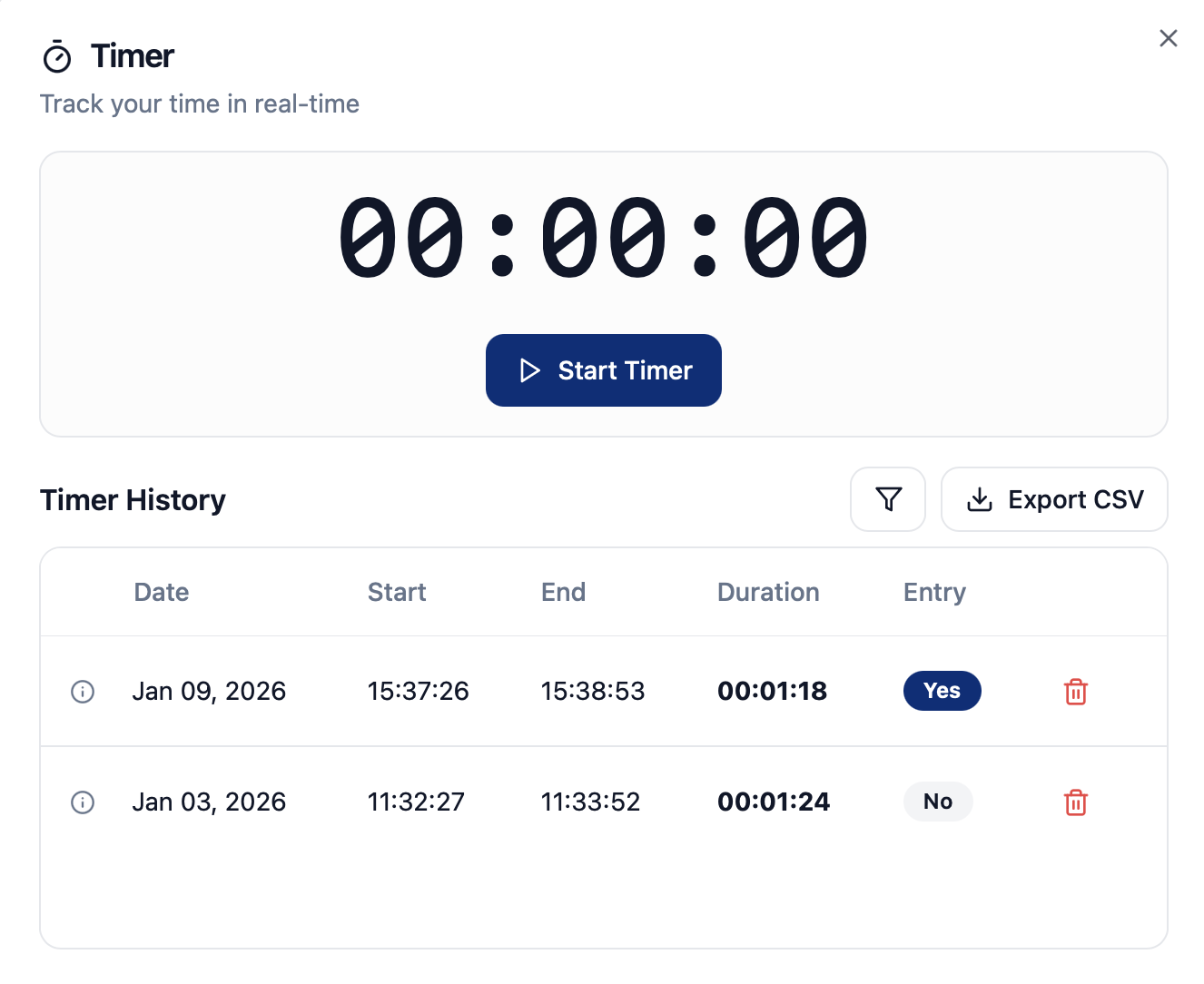
    Live timers allow you to track work in real time with a simple start, pause and stop flow.

    Pasted image


    When a timer is stopped, you can instantly convert it into a time entry with start and end times automatically filled in. Use live timers to capture work accurately without manually calculating hours.

    All completed timers are saved in the timer history. You can see past sessions, check whether a time entry was crated, open related entries, or export timer logs as a CSV file.

    Reports & Export

    Generate beautiful reports
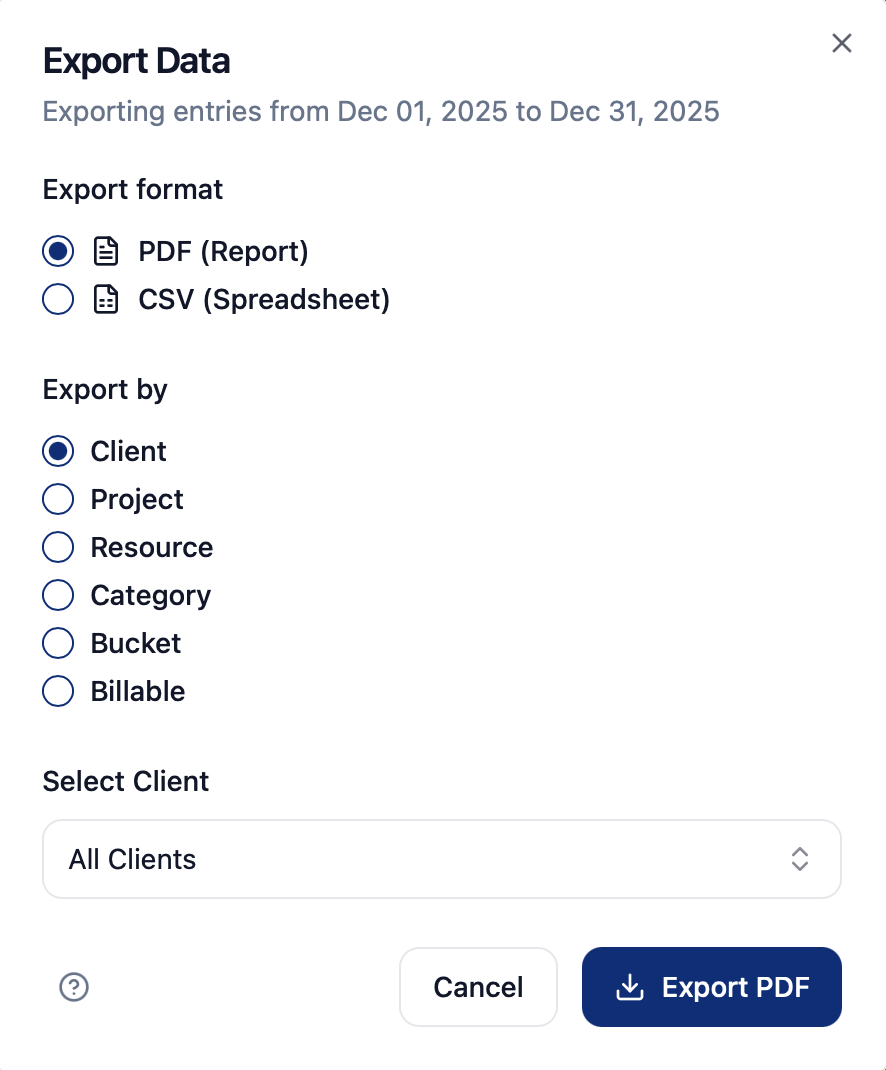
    Export your time data for billing and analysis. 


    Pasted image


    PDF Reports

    Generate professional PDF reports with your branding. Perfect for client invoices. 

    CSV Export

    Export raw data to CSV for spreadsheet analysis or import into other tools. 

    Filtering

    Use date ranges and filters to export exactly the data you need.

    Team Management

    Collaborate with your team
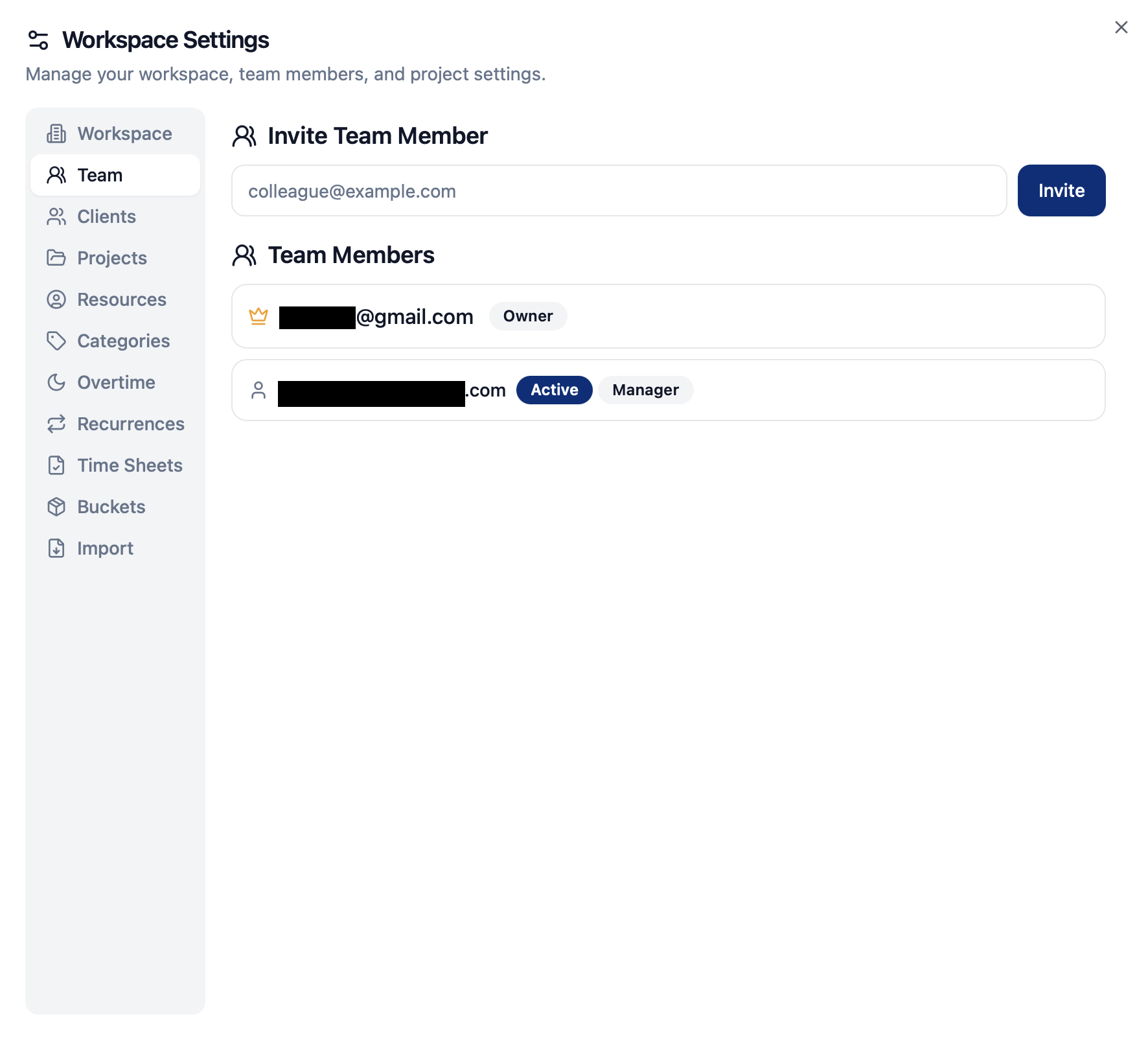
    Invite team members to collaborate on time tracking. 

    Pasted image


    Inviting Members

    Invite team members by email. They must create their own ProHours accounts first. 

    Member Roles

    - Manager: Can manage team members and settings except account deletion.
    - Collaborator: Can add and edit time entries. Can manage settings except Workspace and Team.
    - Viewer: Can only view entries.

    Client Access

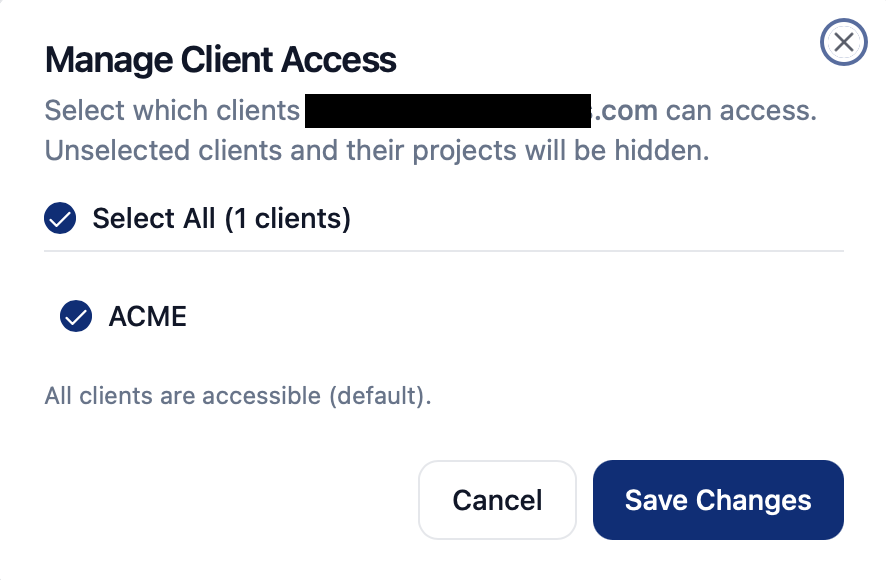
    Restrict which clients each team member can see and log time against.

    Pasted image

    CSV Import

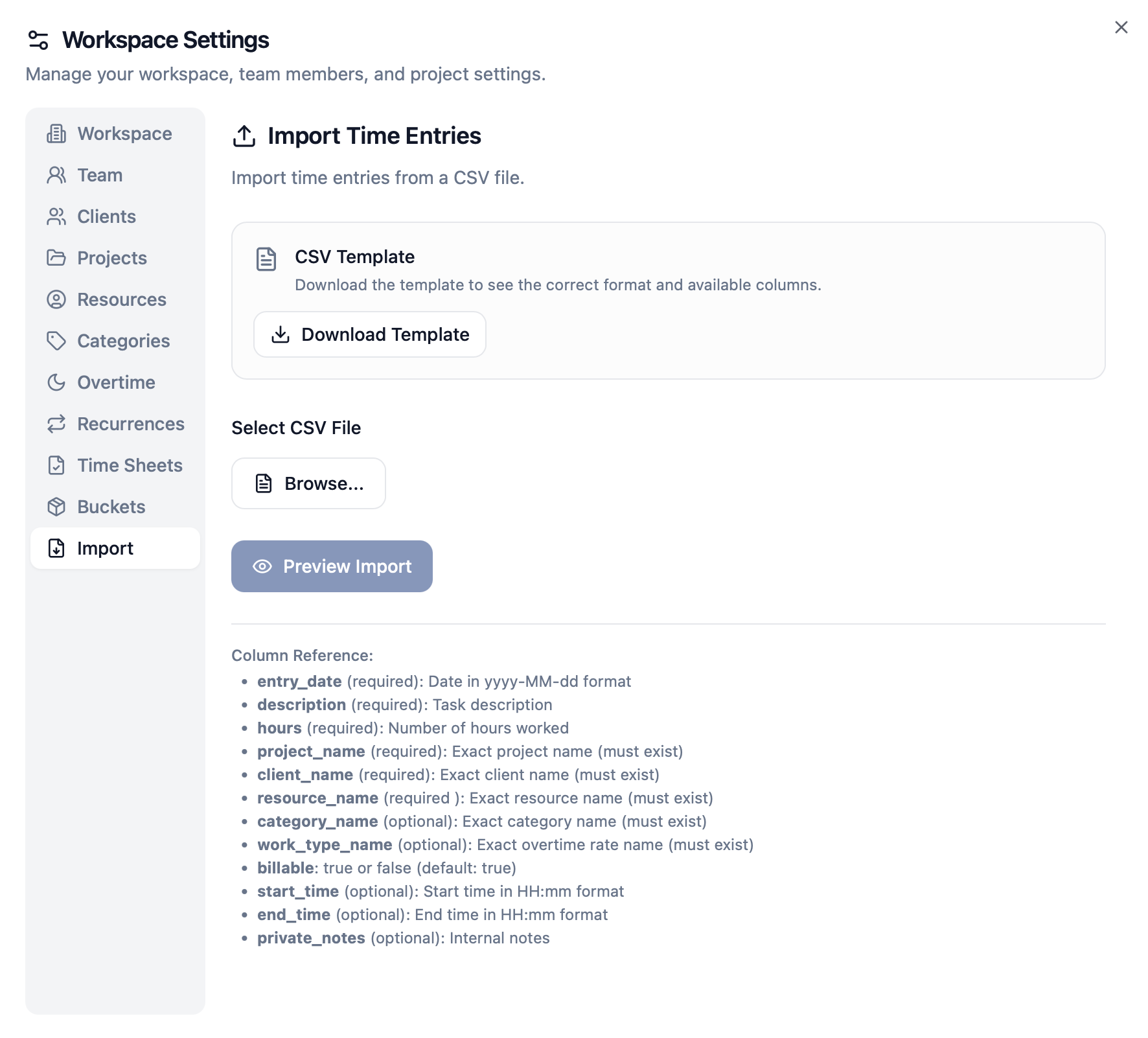
    ProHours lets you import multiple time entries at once using a CSV file, making it easy to migrate data from another tool or upload time logs in bulk.

    Download the CSV Template


    This ensures your file includes the correct column names and format.

    Pasted image


    Fill Out the CSV File


    Add one row per time entry. 


    Required fields include:


    - entry_date (YYYY-MM-DD)

    - description

    - hours

    - project_name (must match an existing project name exactly)

    - client_name, resource_name (must exist exactly)


    Optional fields include:


    - category_name, work_type_name (must exist exactly)

    - billable (true/false)

    - start_time, end_time (HH:mm)

    - private_notes


    Upload the File and Preview Import


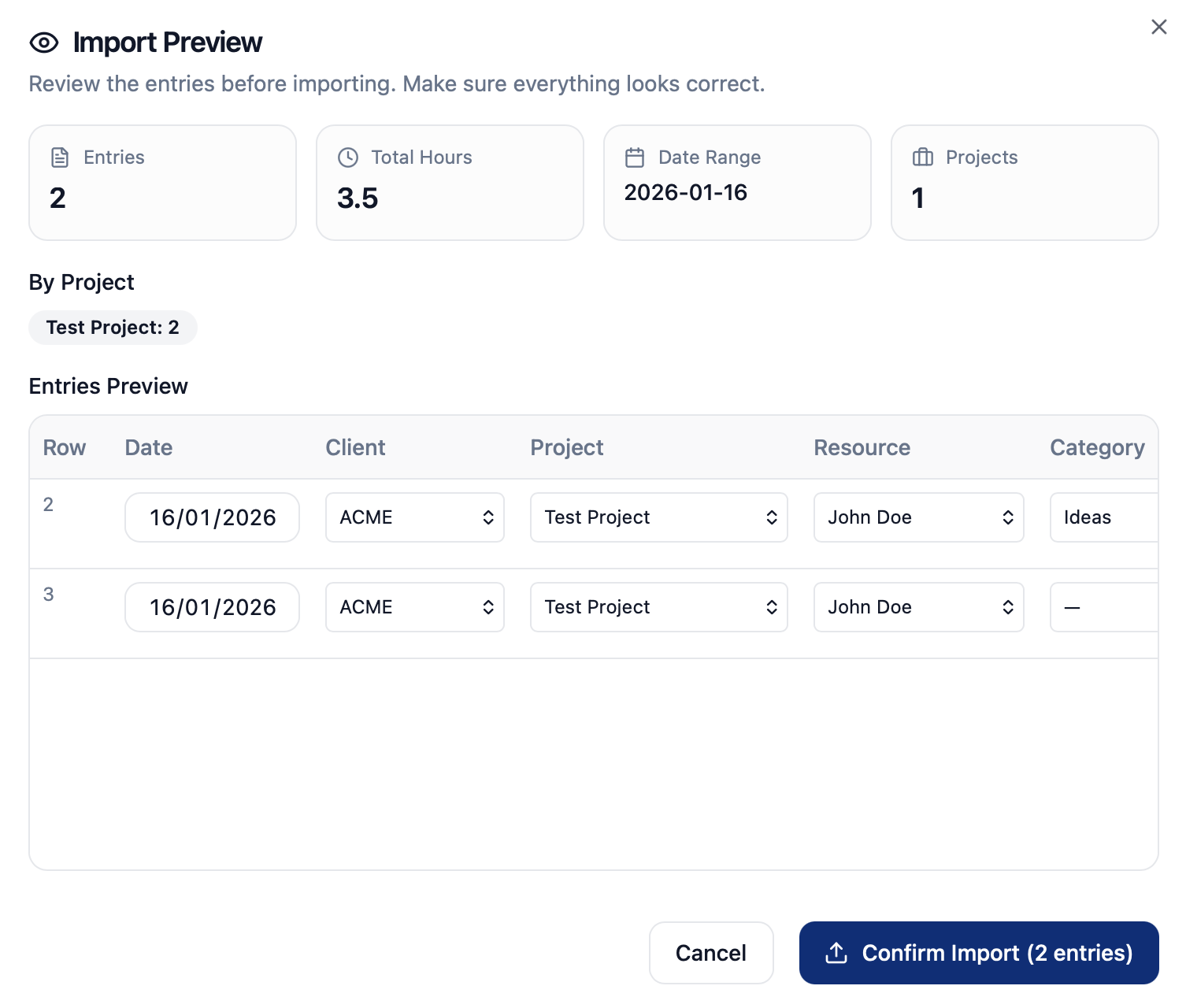
    Click Browse to select your CSV, then click Preview Import. ProHours will validate the data and show a summary:


    - Total entries

    - Total hours

    - Date range

    - Projects included

    Pasted image


In the Import Preview, you can review each row and confirm/edit key values like Client, Project, Resource, and Category. This preview step helps avoid mistakes like missing categories or invalid project names.


    Confirm Import


    Click Confirm Import to finalize. ProHours will create the new time entries exactly as shown in the preview.

    Settings

    Customize your workspace
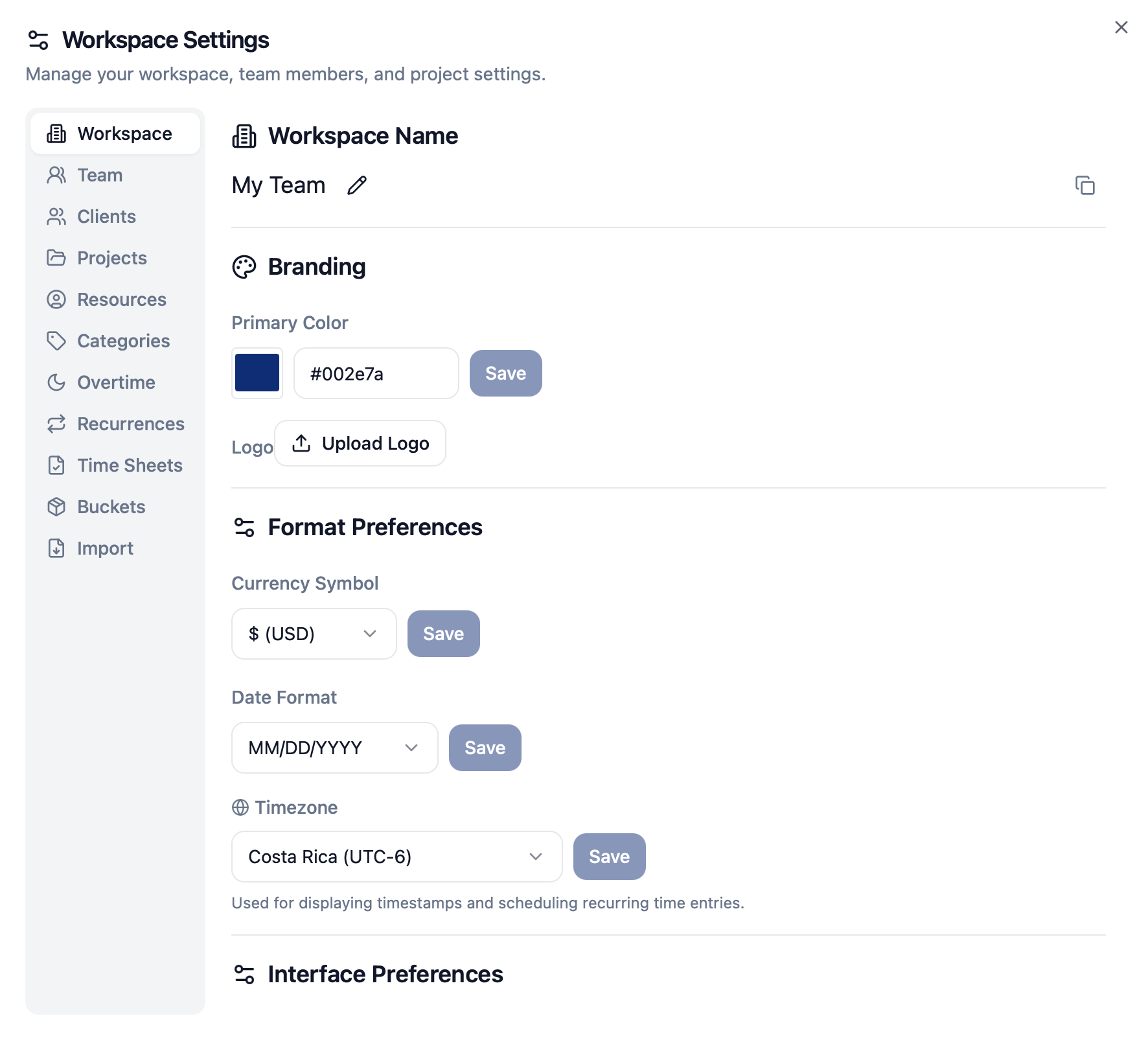
    Configure ProHours to match your workflow. 

    Pasted image


    Workspace Settings

    Set your timezone, date format, and currency symbol. 

    Theme & Colors

    Choose your primary color. 

    Logo Upload

    Upload your company logo to appear on PDF exports.

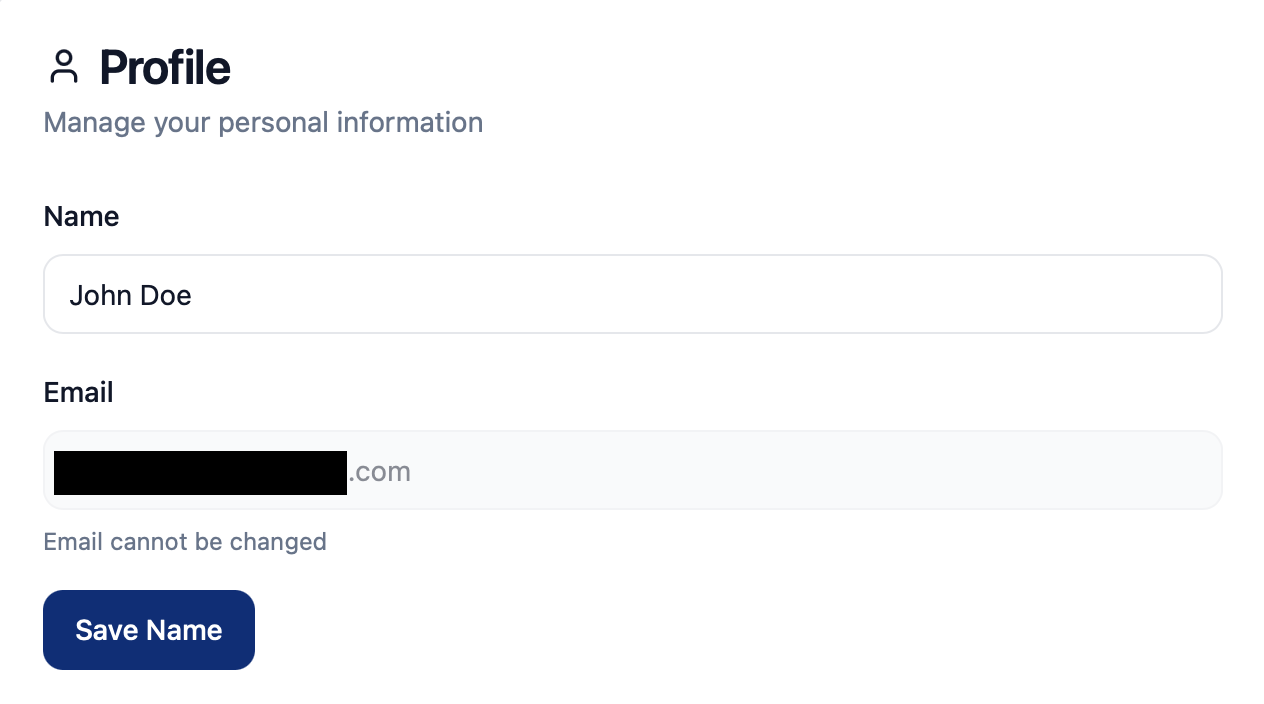
    My Account

    Manage your personal information

    Use this section to update how your name appears across ProHours.

    Pasted image


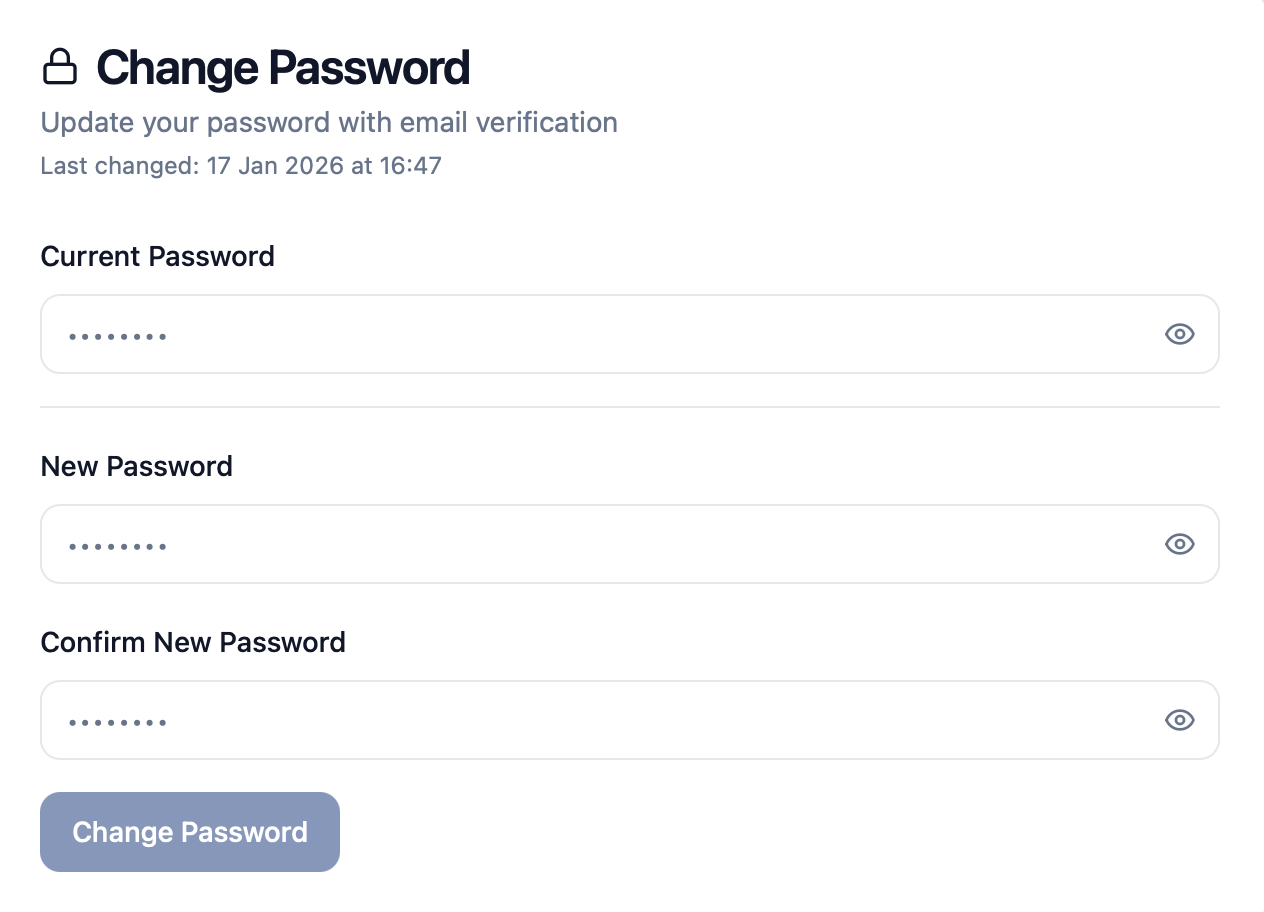
    Update your password securely with email verification.


    To keep your account protected, ProHours requires verification when changing your password. A confirmation code is sent to your email and must be validated before the new password is saved.

    Pasted image

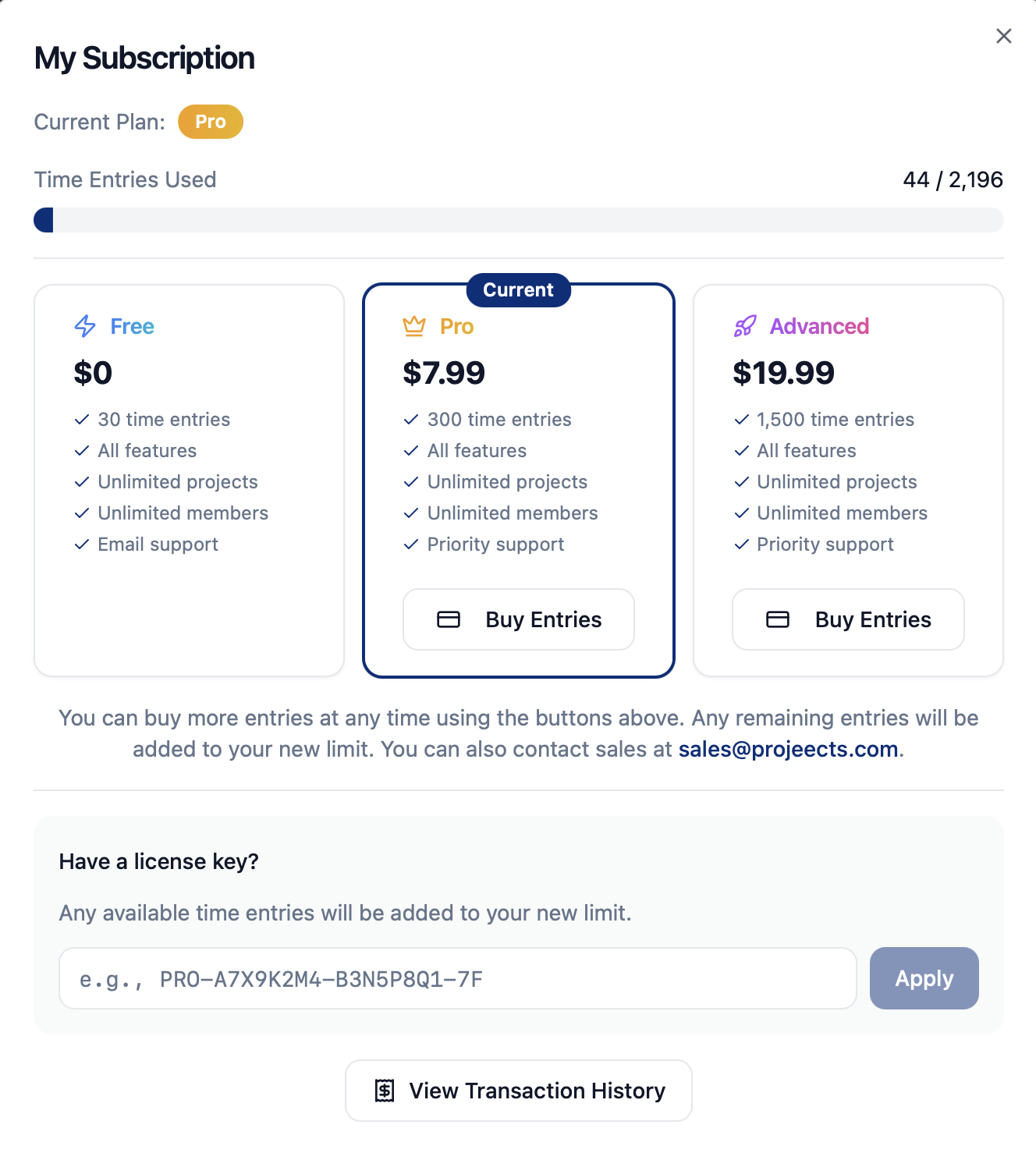
    Subscription

    Manage your plan

    Upgrade to get more entries and priority support. 

    Pasted image


    Free Plan

    Start with time entries at no cost. Perfect for trying out ProHours. 

    Paid Plans

    Upgrade for more entries and priority support. 

    Usage Tracking

    Monitor your entry usage in the subscription dialog.

    Troubleshooting

    Common issues and solutions

    Having trouble? Here are solutions to common issues. 

    Can't Log In

    Check your email for the verification link. Use "Forgot Password" if needed. 

    Missing Data

    Ensure you're viewing the correct date range. Check filters that might be hiding entries. 

    Export Issues

    Make sure you have entries in the selected date range before exporting. 

    Need Help?

    Contact support at support@projeects.com for additional assistance.